The guide
5 best wireless mice for work
THE SHORT ANSWER
The Logitech MX Master 4 is my pick for a desk full of documents and spreadsheets, if its size fits your hand. Choose the Lift for a smaller vertical grip or the M650 for simpler work.
A work mouse can be with you for hours each day. I'd rather have the right shape and a useful scroll wheel than a long spec sheet.
The best wireless mouse for work also has to suit your computer. Software rules, spare USB ports, and the size of your laptop bag can change the answer. These five picks cover the main tradeoffs.
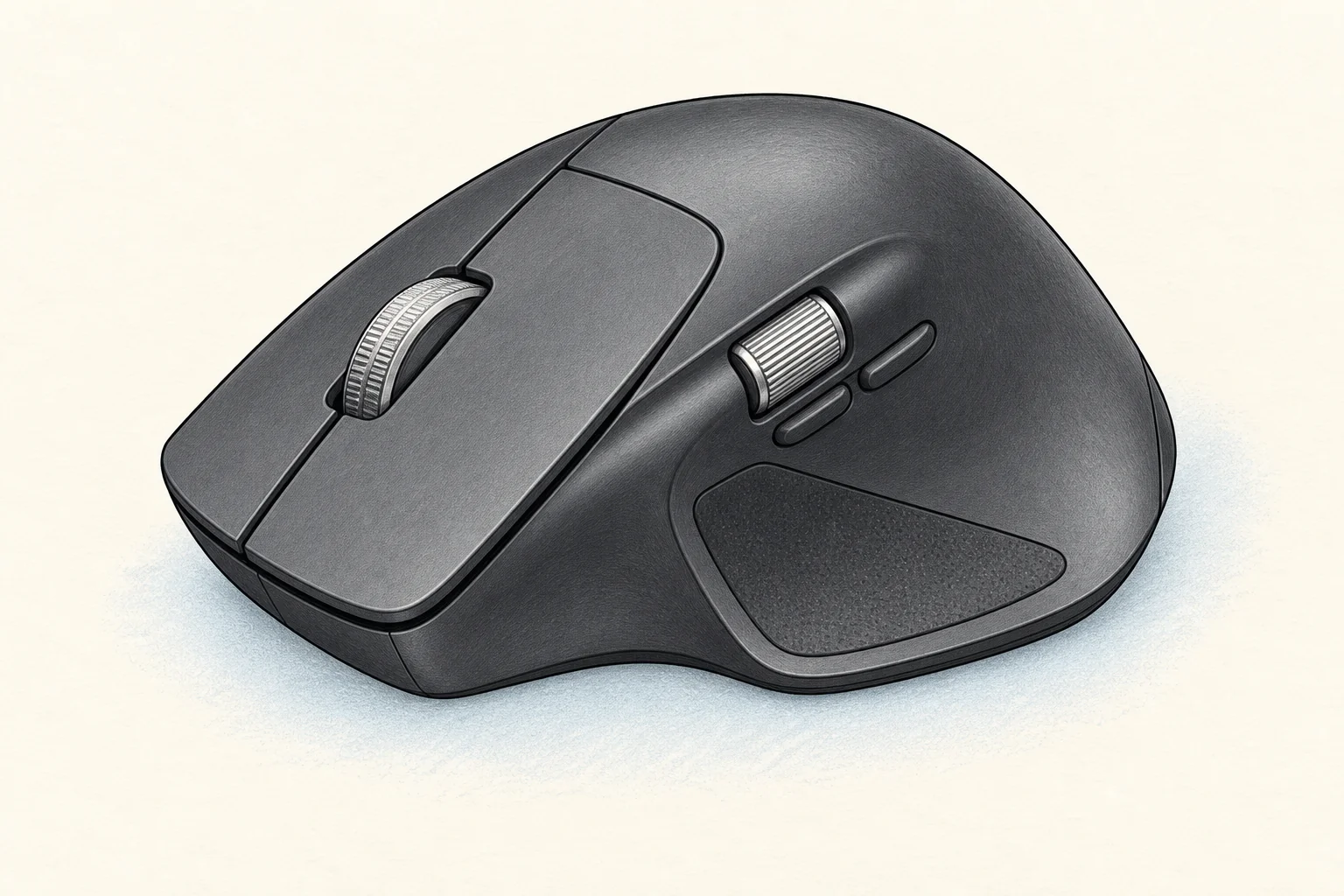
Best wireless mouse for work: my quick picks
| My pick | Best fit |
|---|---|
| Logitech MX Master 4 | A fixed desk, long documents, and app shortcuts |
| Logitech Lift | Small to medium hands that prefer a vertical grip |
| Logitech MX Anywhere 3S | A laptop bag and work across several desks |
| Keychron M6, 1K Premium Wheel | Thumb scrolling in a lighter mouse at a lower price |
| Logitech Signature M650 | Simple daily work on one computer |
My first choice is the MX Master 4 for a right-handed user who will use its extra controls. It isn't a safe blind buy for every hand. For a small hand, a simple job, or a laptop bag, another mouse here may be the better choice.
Prices below were checked on September 14, 2026, in US dollars before tax and shipping. Each recommendation refers to a specific version. A similar name can hide a different size, receiver, or scroll wheel.
1. Logitech MX Master 4: best for a busy desk
The Logitech MX Master 4 is my pick for people who spend much of the day in documents, spreadsheets, or editing apps. At $119.99, its value depends on using more than the left and right buttons.
The main MagSpeed wheel can scroll through long pages. A second wheel sits by the thumb for sideways moves. That's the feature I'd buy for wide sheets and long timelines. You don't need to keep finding a narrow bar at the bottom of the screen.
It connects by Bluetooth or the included Logi Bolt receiver. The Haptic Sense Panel adds touch feedback, while Actions Ring puts shortcuts around an on-screen ring. Custom controls need Logi Options+ on Windows or macOS. Read Logitech's MX Master 4 setup guide before paying for features your work computer may not allow.
The tradeoff: it's a large, sculpted, right-handed mouse that weighs 150 g. I'd try the shape before buying, especially if you often lift your mouse. A long feature list doesn't make a heavy mouse feel light.
The battery charges by USB-C, with a maker rating of up to 70 days. Actual life varies. The consumer launch package doesn't include a charging cable, so check what you already have.
2. Logitech Lift: best for a smaller vertical grip
The Logitech Lift is the vertical mouse I'd try first for a small or medium hand. This ergonomic mouse has a 57-degree angle. It holds the hand more upright than a flat mouse. That's a different grip, not a promise to treat pain.
I like that Logitech states the intended hand size. A tall mouse can look roomy in a photo while still being too small for a large hand. The right-handed Lift and Lift Left are separate versions, so choose the correct one at checkout.
Lift uses one AA battery and can connect through Bluetooth or Logi Bolt. Three connection channels help if your desk has more than one device. SmartWheel handles slow line-by-line moves and faster scrolling.
The tradeoff: an upright shape takes time to learn, and it's bulky for a slim laptop bag. I'd buy from a seller whose return window gives you time to try a normal workday. A few clicks in a store tell you less than editing a document at your own desk.
Choose Lift for the grip and fit. If you just want a small mouse with a standard grip, the M650 is simpler and usually costs less.
3. Logitech MX Anywhere 3S: best for travel
The MX Anywhere 3S is my pick for a laptop that moves between home, an office, and a bag. Its compact body is easier to pack than the MX Master 4. The MagSpeed scroll wheel keeps a useful desk feature.
The $89.99 consumer model pairs with up to three devices by Bluetooth. It has quiet main clicks, an 8,000 DPI sensor, and USB-C charging. Logitech quotes up to 70 days of battery life, though your use will change that result.
Check the box contents: this version works with Logi Bolt, but the receiver is sold separately. An old Logitech receiver isn't automatically the right one. If your work computer needs a receiver, add that cost before comparing prices.
I'd choose it for travel, not assume that small is best for long hours. A compact computer mouse can feel cramped in a large hand. At a fixed desk, a shape that supports the way you hold it may be worth the extra size.
The useful choice here is portability without giving up a good scroll wheel. If you only need a spare mouse for rare trips, the lower-priced M650 may be enough.
4. Keychron M6: thumb scrolling for less
The Keychron M6 makes sense when you want two scroll wheels without the MX Master's price or weight. My choice here is the $49.99 Black Premium Wheel version with the PixArt 3395 sensor, 1K polling, and All Silent switches.
The M6 has programmable buttons and Bluetooth support as well as its receiver link. That long model name matters. The M6 family includes different sensors, wheels, switches, and polling rates. This one has a magnetic metal main wheel, a horizontal thumb wheel, and a right-handed shape. It supports Bluetooth, 2.4 GHz wireless, and a wired USB connection.
The selected version weighs 86 g and runs at up to 1,000 Hz through its receiver or cable. I'd buy it for the lower weight and useful controls, not for a huge DPI number. You can set pointer speed to suit your screen.
The tradeoff: low weight and a light case won't feel good to every person. In a discussion comparing the M6 8K and MX Master 4, owners split on feel. Some preferred the lighter M6; others disliked its grip or wheels. That thread covers the 8K model. It gives you a reason to check fit, but isn't a test of this 1K version.
I'd choose the M6 when its features solve a clear need and the seller's return terms are good. The M650 is my simple budget mouse choice if you have no use for a thumb wheel.
5. Logitech Signature M650: best for simple work
The Logitech Signature M650 is the one I'd buy for email, browsing, and documents on one computer. The standard Graphite model was $39.99 at publication.
Its main strength is a clear fit. The standard size is for small to medium hands. There's a larger size and a separate left-handed large version in the range. Check the exact size rather than picking by color alone.
The M650 connects by Bluetooth Low Energy or a Logi Bolt receiver. SmartWheel shifts between line-by-line and faster scrolling as you move it. The contoured body and side grips give it more shape than a flat travel mouse.
The tradeoff: I wouldn't choose it for a workflow built around a horizontal wheel or a large set of app shortcuts. It's a basic work mouse, and that's the reason to buy it. The savings are useful if your current keyboard needs attention too.
For a whole desk refresh, I'd pair a sensible mouse with one of these budget mechanical keyboards. Keep enough room between them to move freely.
How to choose a wireless mouse that fits
Palm grip or fingertip grip?
Some people rest most of the palm on the mouse. Others hold it with curled fingers or guide it mainly with their fingertips. A shape that suits one grip can feel awkward in another.
I'd place my hand on the mouse without reaching for its buttons. The main clicks and wheel should be easy to use. If you must stretch, pinch hard, or shift your grip for each action, try a different size.
Wireless mice can differ a lot in weight
A heavier mouse can feel steady to one person and tiring to another. A lighter one can be easier to lift, yet feel less substantial. Neither feeling is a measure of accuracy.
If you lift and move your mouse often, weight deserves more attention. If it stays on a large pad and you use gentle movements, the shape and wheel may matter more.
Give an ergonomic mouse room to move
A good mouse can't fix a crowded desk. Keep it close enough that you can use it without reaching far to the side. A smaller keyboard may help if a number pad keeps pushing the mouse away.
For quiet work, think about the rest of the room too. Our headphone guide explains which designs keep music private and which let it out.
Wireless mice: Bluetooth or a USB receiver?
Bluetooth support saves a USB port. That's useful on a small laptop. A dedicated receiver can make a more predictable connection when the computer's Bluetooth is awkward, crowded, or unavailable.
The USB receiver has to match the mouse. A Logitech mouse won't pair with every Logitech receiver. Logitech Bolt and older Logitech receiver systems are different. Check the exact receiver named on the product page.
Also check the plug. A USB-A receiver may need an adapter on a laptop with only USB-C. Some packages include one; others don't. Count the full cost, including a missing receiver or adapter.
A cable used for charging doesn't always carry mouse data. The M6 supports wired use, but that feature isn't shared by every rechargeable wireless mouse. Read the connection spec if wired backup matters to you.
Check software for programmable buttons
A mouse may move the pointer on your computer while its extra features remain unavailable. App shortcuts, a gesture button, and other programmable buttons can need separate software.
Before paying for those tools, check your employer's device rules. You may be able to install the app at home but not on a work laptop. A remote desktop can also handle shortcuts differently from the local computer.
I'd write down the two or three actions I want to put on the mouse. Then I'd check whether they work on the exact operating system and in the apps I use. Back, forward, and sideways scrolling are often more useful than a dozen clever actions you never learn.
For the MX Master 4, the software adds much of its value. For a locked-down work computer, the M650's simpler job may make more sense. The best wireless mouse is the one whose useful features you can actually use.
Wireless mice, battery life, and charging
Rechargeable mice save you from keeping spare batteries. Replaceable-battery mice let you get back to work with a fresh cell. Neither approach is better for every desk.
Treat a maker's maximum battery figure as a guide. Connection mode, hours of use, and features can change the result. A short charging break is easy at a fixed desk. It's less helpful if the mouse runs out during travel.
I'd keep a charging cable in the bag for a rechargeable model. For a mouse that uses AA cells, I'd keep one spare nearby. Small practical habits matter more than the largest number on the box.
Do you need a gaming mouse for work?
Not usually. A gaming mouse can work well if you like its shape and low weight. But office tasks rarely need the highest polling rate or DPI setting.
DPI changes how far the pointer moves for a given hand movement. Polling rate is how often the mouse sends an update. Those are different things. Neither number tells you how a scroll wheel feels or whether your thumb reaches a button.
For spreadsheets and text, I'd put fit, scrolling, and a steady connection first. For work that shares a desk with fast games, the M6 gives you a useful middle ground. Use the settings that feel controlled, not simply the largest ones.
The scroll wheel deserves a closer look
A work mouse can save more effort through its scroll wheel than through a faster sensor. Think about the pages you move through each day. A long report, a wide sheet, and a photo timeline call for different moves.
Notched or free-spinning?
A notched scroll wheel gives a clear step under your finger. That helps when moving a few lines at a time. A wheel that spins freely can move through a long document with one flick.
The Logitech MX Master 4 and MX Anywhere 3S use MagSpeed wheels for this mix. Logitech Lift and the M650 use SmartWheel. Try both slow and fast moves. Smooth scrolling should also stop where you expect.
A second wheel for wide work
The side scroll wheel on the MX Master 4 and selected M6 is a real reason to choose them. Horizontal scrolling lets you move across a wide sheet without dragging its bottom bar. Video and audio timelines can benefit too, depending on the app.
If you rarely work in those views, you may not use the extra wheel. The best wireless mouse for work doesn't need every control. It needs the controls that shorten tasks you already do.
Make programmable buttons earn their place
Programmable buttons let you assign a different action to a mouse control. They can be useful, but a high button count isn't a promise of a faster workday. Reach and software support come first.
Start with two repeat tasks
I'd start with Back and Forward for web pages, or an action that changes between browser tabs. For creative work, Undo may be more useful. Keep the first set small enough to learn without a cheat sheet.
Customizable buttons are only helpful when your fingers can find them. Do you have to roll your hand away from the main clicks? The shortcut may cost more effort than it saves. Try each of the mouse buttons with your normal grip.
Keep app-specific shortcuts predictable
Software can give the same button a different job in each app. That suits a productivity mouse such as the MX Master 4. It also creates more settings to remember.
Keep common actions in the same place when you can. If one button means Back in a browser and Delete in another app, a habit can cause an unwelcome surprise. Build the map around work you repeat often.
What haptic feedback adds
The Logitech MX Master 4 adds haptic feedback through its thumb area. This is a touch cue for supported actions. It doesn't make the sensor more accurate or make every task faster.
I'd treat that feedback as a bonus. The scroll wheels, reach of the programmable buttons, and fit would decide the purchase. A feature that feels novel for a minute needs a daily use to justify the price.
One mouse across multiple devices
A single mouse can clear space when you work across multiple devices. Check how it changes between paired devices, not just how many it can remember. Those are related but separate questions.
Pairing isn't simultaneous control
The MX Master 4, Logitech Lift, and MX Anywhere 3S can store links for up to three devices. You select the device to control. That doesn't mean one hand movement drives three pointers at once.
Look at where the switch sits and how often you'll use it. A control on the underside may be fine for a few changes each day. For constant moves between multiple computers, a supported software feature may be worth learning.
Check the software route too
Logitech Flow can move control between supported computers when the pointer reaches the edge of the screen. It needs setup and compatible software. It's a different feature from simply storing Bluetooth pairings.
Before buying a mouse for multiple devices, check the network and software rules on both computers. A work laptop may not allow the same tools as your personal one. Don't buy a productivity feature that your setup can't use.
Is a vertical mouse the right shape?
A vertical mouse turns the grip more upright. Some people prefer that position to a traditional mouse. Others find the shape less easy to guide. Ergonomic design is a starting point for a fit check, not a result that applies to every hand.
Try the vertical mouse at your own desk
Logitech Lift is aimed at small to medium hands. I'd check the reach to the scroll wheel and side buttons before thinking about its 57-degree angle. An ergonomic mouse that's too small can still make you curl or stretch your fingers.
Use your normal tasks during the return window. Drag a small object, select text, and make a careful click. A vertical mouse changes how you guide it across the desk. A few clicks aren't enough to judge it.
Choose a vertical mouse for the hand you use
A right-handed thumb rest doesn't become comfortable just because you swap the main clicks in software. Left-handed users should check the body shape as well as the mouse settings.
Logitech Lift has a separate left-handed version. The M650 range also includes a large left-handed model. The exact size still matters. Those versions are choices to investigate, not a claim that the standard right-handed picks fit either hand.
What about a trackball?
Trackball mice keep the body mostly in place while your thumb or fingers move a ball. That can suit a desk with little room to move a mouse. It's another style to try if the usual shapes don't suit you.
I wouldn't choose a vertical mouse or a trackball only because it carries an ergonomic label. Find a shape and position that let you work comfortably. The desk height and room beside the keyboard still matter.
Small details that can spoil a good mouse
Quiet clicks in a shared room
Quiet clicks are useful during calls or when someone works nearby. They don't guarantee a silent scroll wheel or silent side buttons. Check whether quiet clicks cover all the mouse buttons or just the main two.
The selected M6 version uses All Silent switches, while the MX Anywhere 3S has quiet main clicks. Compare the exact version. Wireless mice with the same shape can ship with different switches.
Look for dongle storage
For travel, dongle storage is a small feature worth checking. A USB receiver is easy to lose loose in a bag. If there's no storage slot, give it a fixed place in a small pouch.
Don't leave a long USB dongle sticking out while packing the laptop. Also check whether a USB-A plug will fit your next computer. A small mouse becomes less handy when it needs several loose adapters.
Battery life that fits your routine
A rechargeable computer mouse can give weeks of ordinary use, but the battery life claim still needs context. Higher polling rates, connection choices, and daily hours can change the result. I'd use the maker's figure to plan charging, not to predict an exact date.
Logitech Lift runs on a single AA battery. That's useful when you want a quick swap rather than a charging break. With rechargeable wireless mice, keep the right cable nearby. A shared USB-C plug doesn't prove that the cable carries data.
A surface that tracks well
Try the computer mouse where you plan to use it. A shiny table or glass top can behave differently from a mouse pad. Check the sensor's stated surface support instead of assuming every wireless mouse works everywhere.
When the pointer feels jumpy, try a plain mouse pad and check the sensor for dust. Then check the connection and mouse settings. Change one thing at a time so you can tell what helped.
When I'd spend less
The M650 is my best budget mouse choice here for a simple one-computer job. It puts the money toward fit and a useful scroll wheel. The M6 adds more controls for a modest step up in price.
The Logitech MX Master 4 makes sense when its programmable buttons and wheels will see daily use. If those productivity features would stay at their defaults, a budget mouse may serve you just as well.
A gaming mouse is worth considering if you also play fast games or prefer a light body. Wireless gaming mice can be fine for office work. Still, I wouldn't pay for a high polling rate at the expense of a scroll wheel I enjoy using.
Keep a working computer mouse if it already fits the job. The best mouse isn't always the newest one. A new purchase should solve a problem you can name, such as poor fit, unreliable pairing, or missing controls.
My buying rule
Choose the MX Master 4 when you want its wheels and can use its software. Try Lift when a smaller vertical grip appeals. Take the Anywhere 3S for travel, the M6 for lighter thumb scrolling, and the M650 for straightforward daily use.
Buy from a seller that lets you check the fit at your own desk. A good work mouse should become easy to forget about once you start the job.